Table of Contents
Every investment must be assigned to an active bank detail to ensure proper fund disbursement.
Key points to keep in mind:
- Bank details must be in the same currency as the investment, ensuring the account can accept funds in that currency.
- Both agents and investors have the ability to update and change bank details for their own or their clients’ investments.
- Important: If a bank detail is updated on an investment, the agent must notify the investment issuer to ensure any pending payment disbursement instructions are correctly updated and processed for the new account.
- If you require to delete a bank detail from your account, please contact the Live Support chat for further assistance
How to change bank details for your clients (For Agents) #
- Login to your Agent InvestorDisplay account
- Locate the “Switch User” at the top right and search for the client you want to update bank details for. Click on the user to access the clients profile view
- Select one of their investments directly on the dashboard
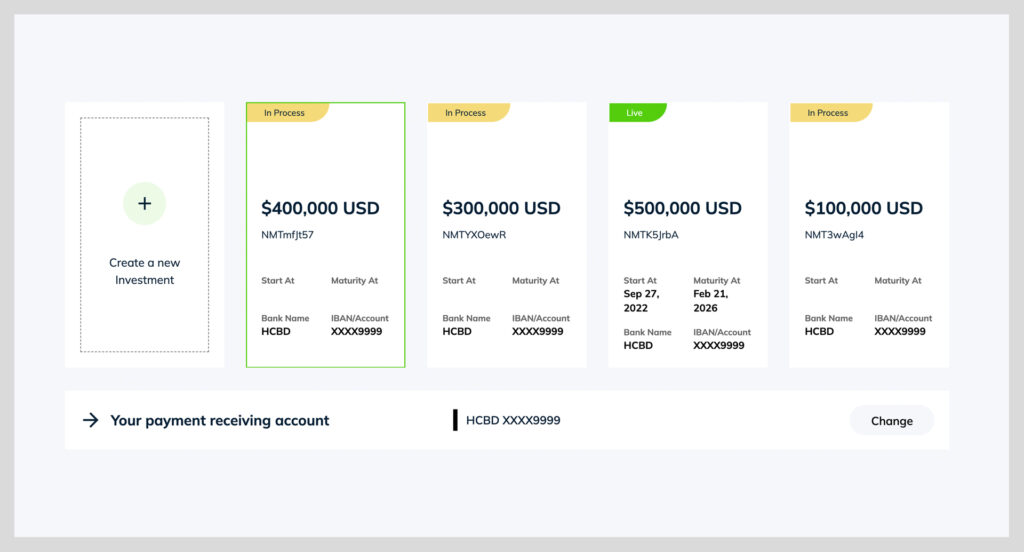
- Click “Change” on the “Your payment receiving account”
- Select the alternative bank detail that you want to reassign to the investment OR create a new bank detail
- Click “Change”
Alternatively, you can change the bank detail for your clients investments with the following steps:
- Navigate to the “Investments” section on your agent account
- Search and to find the investment ID you want to change the bank detail for
- Click “Change Bank Detail on the top right
- Select the new Bank Detail
- Click Save
The investment will now be assigned to the new account that was selected and all future payments on the investment will be paid to that account.

How to change bank details (For Investors) #
- Login to your Agent InvestorDisplay account
- Select one of their investments directly on the dashboard
- Click “Change” on the “Your payment receiving account”
- Select the alternative bank detail that you want to reassign to the investment OR create a new bank detail by clicking “Add new account”
- Click “Change”